

Connect Samflix to your favorite IPTV player
One Subscription. Multiple Formats. One Complete Entertainment Library.
With every Samflix subscription, you get flexible access through Xtream API and M3U links, giving you an easy way to watch live TV, movies, and series across compatible IPTV players, Smart TVs, streaming devices, phones, computers, and more.
Whether you use TiviMate, IPTV Smarters Pro, VLC, Kodi, Fire TV Stick, Android TV, or an M3U-only Smart TV app, Samflix gives you the connection options you need.
Why Choose Samflix Xtream API & M3U Access?
Your Samflix account gives you more than just a playlist. You get flexible connection options designed to work with different devices and IPTV players.
- Xtream Codes login for supported IPTV players
- M3U playlist URLs for compatible apps and devices
- M3U Plus format with channel groups, logos, and guide information
- XMLTV EPG support for your electronic TV guide
- Support for TS and HLS/M3U8 streaming formats
- Access to 20,000+ live channels
- Access to 60,000+ movies and TV shows
- Support for multiple compatible devices
- Connection limits based on your selected plan
You don’t need separate subscriptions for different formats. Your Xtream API and M3U options connect to the same Samflix library.
Customer Stories

Xtream API vs M3U: Which One Should You Use?
Both options connect you to your Samflix content, but they work differently.
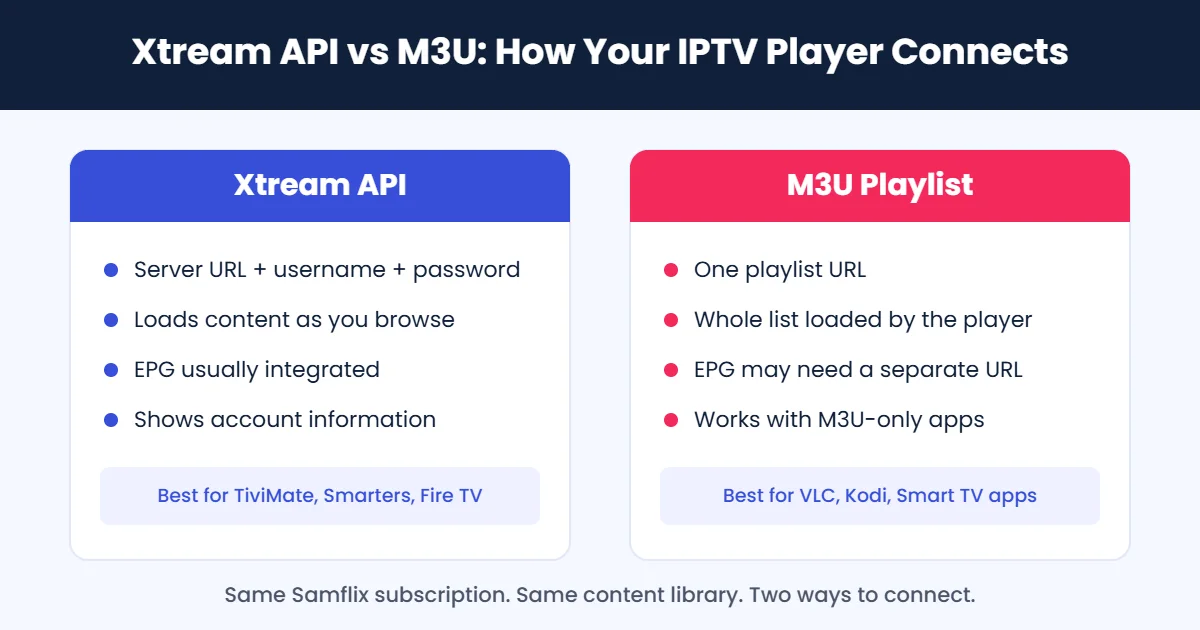
Xtream API
Xtream API uses your server URL, username, and password to connect your IPTV player directly to the Samflix service.
Instead of downloading one huge playlist, compatible apps can load live channels, movies, series, categories, and other information as you browse. This makes Xtream API particularly useful for large content libraries and devices with limited storage or memory.
Recommended for: TiviMate, IPTV Smarters Pro, XCIPTV, IBO Player, Fire TV, Android TV, and other modern IPTV players.
M3U Playlist
An M3U playlist gives your player a URL containing your available streams.
It’s a straightforward option when your IPTV application doesn’t offer Xtream API login or when you want more control over the playlist itself.
Recommended for: VLC, Kodi, SS IPTV, M3U-compatible Smart TV applications, and playlist management tools.
Xtream API vs M3U at a Glance
| Feature | Xtream API | M3U Link |
|---|---|---|
| Login method | Server URL + username + password | One playlist URL |
| Live TV | Yes | Yes |
| Movies & series | Yes | Yes |
| Categories | Loaded by the player | Included in playlist |
| EPG | Usually integrated | May require separate EPG URL |
| Account information | Often displayed | Usually unavailable |
| Large libraries | Loads content as needed | Can require a large playlist |
| TiviMate | Yes | Yes |
| IPTV Smarters Pro | Yes | Yes |
| VLC | Not normally used | Yes |
| Kodi | Supported through compatible setup | Yes |
| M3U-only Smart TV apps | No | Yes |
So, which should you choose?
For most modern IPTV players, Xtream API is the easiest option. If your application only accepts playlists, simply use your Samflix M3U link.
You can also use both formats across different devices within your household.
How to Set Up Samflix Xtream API
Setting up Xtream API is straightforward. You’ll need three details, and your Samflix credentials can then be entered into any compatible IPTV player.
Enter it exactly as provided, including the port if one is included.
Your Samflix username. Credentials are case-sensitive.
Your Samflix password, typed exactly as supplied.
TiviMate
A popular choice for Android TV, Fire TV, and NVIDIA Shield users.
Open TiviMate and select Add Playlist → Xtream Codes. Enter your Samflix server address, username, and password.
Make sure you enter the server address exactly as provided, including the port if one is included. Once connected, TiviMate can load your live TV, movies, series, categories, and available guide information.
IPTV Smarters Pro
Open IPTV Smarters Pro and choose Login with Xtream Codes API.
Enter your playlist name, username, password, and server URL. Once authenticated, your content is organized into Live TV | Movies | Series.
This makes it easy to move between different types of entertainment without manually managing a large playlist.
XCIPTV & IBO Player
XCIPTV and IBO Player also support common IPTV connection methods. Where Xtream API is available, enter your Samflix server details and credentials.
Some IBO Player setups may require you to add your playlist through the application’s website using your device information.
Follow the instructions displayed by the player for your particular device.
Fire TV Stick tip
Samflix on Fire TV Stick
Using a large M3U playlist can place additional demands on devices with limited memory. That’s why Xtream API is generally the better choice for Fire TV devices.
Instead of loading a massive playlist all at once, compatible IPTV players can request content as you browse. If your Fire TV Stick is experiencing freezing or app crashes while loading a large M3U playlist, try switching to an Xtream API connection.
How to Use Your Samflix M3U Playlist
Your Samflix M3U playlist follows a standard IPTV format. A typical structure looks like this:
http://[server]:[port]/get.php?username=[your_username]&password=[your_password]&type=m3u_plus&output=tsReplace the placeholder information with the credentials supplied for your Samflix account. Two settings matter most here: the playlist type (M3U or M3U Plus) and the stream output format (TS or M3U8).
M3U vs M3U Plus
A standard M3U playlist provides basic channel and stream information. M3U Plus can provide additional information such as:
- Channel logos
- Category groups
- TV guide IDs
- Channel metadata
For a more organized IPTV experience, M3U Plus is generally the better choice when your player supports it.
TS vs M3U8: Which Format Should You Use?
Your M3U playlist can use different stream output formats.
TS (MPEG-TS)
MPEG-TS is widely supported by IPTV applications and is a good starting point for many devices.
M3U8 / HLS
HLS divides video into smaller segments and can be useful for certain Apple devices, browser-based players, and Smart TV applications.
Our simple recommendation
Start with TS. If a particular device or player doesn’t play the streams correctly, try M3U8/HLS instead.
Where Can You Use Your Samflix M3U Link?
Your M3U playlist can be added to compatible IPTV applications and players.
VLC
Open VLC media player, go to Media → Open Network Stream, paste your M3U URL, and start playback.
Kodi
Install a compatible IPTV/PVR add-on from the official Kodi add-on repository and enter your M3U playlist URL.
Smart TV IPTV Apps
Some Smart TV applications allow you to upload or enter an M3U playlist through their app or web portal. This is particularly useful for Smart TVs that don’t provide an Xtream login option.
Set Up Your Samflix EPG
Want your channels to display program information? You’ll need your XMLTV EPG URL. A typical EPG address looks like this:
http://[server]:[port]/xmltv.php?username=[your_username]&password=[your_password]Compatible Xtream players may automatically detect the guide. For M3U-based players, you may need to enter the EPG URL manually.
Why isn't my TV guide showing?
If your channels work but your EPG says “No Information,” check:
- Your XMLTV EPG URL
- Your playlist format
- Your channel guide IDs
- Your player's EPG settings
- Whether the initial guide synchronization has completed
Using M3U Plus can help because it provides the channel IDs needed for guide matching. The first EPG synchronization may take several minutes depending on your player and the amount of guide data being loaded.
Use Samflix Across Your Devices
One Samflix subscription can be installed on multiple compatible devices. However, your plan’s simultaneous connection limit determines how many devices can stream at the same time.
For example, if your plan allows two simultaneous connections and two devices are already streaming, a third stream may be refused. That’s not necessarily a service problem. It can simply mean you’ve reached the connection limit included with your plan.
You can check your account details through supported Xtream API players where available.
Keep Your Samflix IPTV Links Private
Your M3U URL contains account information that can be used to access your subscription. Treat your IPTV credentials like you would treat a password. Don’t post your full M3U URL publicly. Avoid sharing it in:
- Public forums
- Social media posts
- YouTube comments
- Public support groups
- Untrusted websites
If someone gets your credentials, they may be able to use your available connections. If you believe your credentials have been exposed, contact Samflix support for assistance.
Samflix Xtream API & M3U Troubleshooting
Having trouble connecting? Don’t worry. Most setup problems can be fixed by checking a few basic settings first.
"Invalid Credentials"
Double-check your username, password, server URL, port, HTTP/HTTPS, and capitalization and spelling.
Credentials are case-sensitive, so even one incorrect character can prevent login. If your server includes a port, make sure you enter it exactly as provided.
Playlist Loads but Channels Don't Play
Try switching from TS to M3U8/HLS, or from M3U8/HLS to TS.
If only one channel doesn’t work while others play normally, that particular stream may be temporarily unavailable. Try again later.
If the entire playlist fails on one device but works correctly on another, the issue may be related to the application or device.
Channels Keep Buffering
Streaming quality depends heavily on your internet connection and device. For HD streaming, a stable connection is important, while 4K content requires substantially more bandwidth.
Try:
- Using a wired Ethernet connection
- Switching to 5 GHz Wi-Fi
- Moving your router closer to the device
- Restarting your router
- Closing unnecessary background apps
- Testing the connection on another device
If buffering happens mainly during busy evening hours, your local network or ISP connection may also be contributing to the problem.
My Smart TV Won't Load the Playlist
Large M3U playlists can be difficult for some Smart TV applications to process. If your TV struggles to load the complete playlist, try:
- Using an Xtream-compatible application
- Using a smaller or live-TV-only playlist if available
- Trying another compatible IPTV player
- Contacting Samflix support for device-specific assistance
My Account Shows as Expired
Check your subscription expiry date. If your plan has expired, renew it before trying the connection again.
After renewal, your existing credentials may continue to work depending on your account setup.
Why Samflix Gives You Both Xtream API & M3U
Every household has different devices. You might have:
on Android TV
on your phone
on your laptop
on your Smart TV
You shouldn’t need a different IPTV subscription for every device. That’s why Samflix provides flexible connection options through the same subscription. With your Samflix account, you can access:
- Xtream API login
- M3U playlist
- M3U Plus playlist
- TS output
- HLS/M3U8 output
- XMLTV EPG support
All connected to the same Samflix entertainment library.
Frequently Asked Questions
Are Xtream API and M3U links included in the same Samflix subscription?
Yes. They provide different ways of connecting to the same Samflix content using your account credentials.
Which is better for Fire TV Stick?
Xtream API is generally the better option for Fire TV devices, particularly when dealing with large content libraries.
Why does my M3U playlist work but my TV guide doesn't?
Your IPTV player may require a separate XMLTV EPG URL. Check your EPG settings and make sure your playlist includes the required guide IDs.
Can I install Samflix on multiple devices?
Yes. You can install your Samflix connection on compatible devices. The number of devices that can stream simultaneously depends on your subscription’s connection limit.
What is the difference between M3U and M3U Plus?
M3U provides basic playlist information. M3U Plus can include additional details such as channel logos, groups, and guide IDs.
Should I use TS or M3U8?
Start with TS for broad compatibility. If your device doesn’t play the streams correctly, try M3U8/HLS.
What should I do if my Samflix link stops working?
Check your subscription status, username, password, server URL, port, and internet connection. You can also test the credentials on another compatible player.
If the issue continues, contact Samflix support for assistance.
Connect Samflix to Your Favorite IPTV Player
Getting started doesn’t have to be complicated. Choose the connection method that fits your device.
- Xtream API for supported IPTV players and easier category-based browsing
- M3U for VLC, Kodi, Smart TVs, and apps that require playlist URLs
- M3U Plus when you want channel groups, logos, and guide information
- XMLTV EPG when you want a full TV guide experience
With Samflix, your IPTV setup is flexible enough to fit the devices you already use. Choose your Samflix plan, get your connection details, and start setting up your favorite IPTV player.
Ready to connect?
Enjoy your entertainment your way. Questions first? Contact Samflix support.